 Insightube
How to summarize a YouTube video with AI
A good summary tells you in one minute what a 40-minute video says, why the speaker says it, and which part is worth watching. Here’s how to get one, and how to tell a useful summary from a vague one.
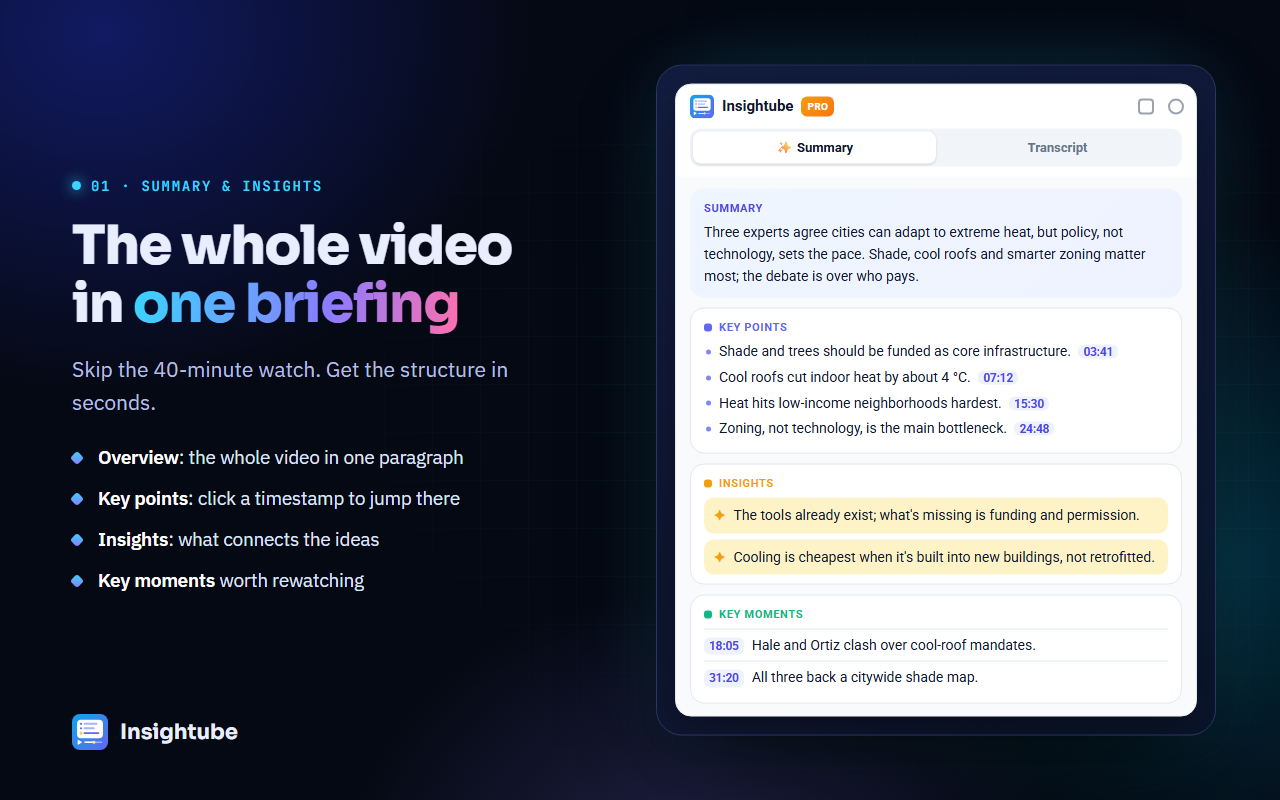
What a useful video summary contains
Many AI summaries read like a table of contents: “The speaker discusses productivity.” That tells you the topic, not the content. A summary worth reading gives you:
- The context and the conclusion: what question the video starts from and what it ends up saying.
- Key points with the reasons behind them: not just the claim, but why the speaker believes it and the example, story or number they use.
- Timestamps, so you can jump straight to the part you want to see for yourself.
- Who said what, for interviews and panels, so different opinions aren’t blended into one.
Summarize a video in three steps
- Install Insightube from the Chrome Web Store and sign in with Google. The free plan includes 3 AI summaries a week, for videos up to 30 minutes.
- Open the video on YouTube. The Insightube panel appears beside it.
- Click “Summary & insights” (or press Alt+Shift+S). The summary appears within seconds, while you keep watching.
What you get
- Summary: the whole video in one paragraph, with its context and conclusion.
- Key points: each idea explained with the reasoning and examples the speaker gives, and a clickable timestamp.
- Viewpoints by speaker: each person’s position and why they hold it, plus where they agree and disagree.
- Insights: the assumptions underneath, what’s surprising, and what’s missing from the argument.
- Key moments worth rewatching.
Every summary is saved in your browser’s History, where you can search it later by title, channel or idea.
Get the summary in your own language
In Settings, choose a Summary language. An English video can be summarized directly in Chinese, Japanese, Spanish or any of 69 languages, or you can keep the video’s own language. See translating YouTube videos for more.
Tips for better summaries
- Videos with captions work best. The AI reads the transcript, so a video without captions can’t be summarized.
- Check surprising claims. Click the timestamp and hear it in the speaker’s own words before you quote it.
- Use it to decide what to watch. Read the summary first, then watch only the minutes that matter to you.
Common questions
Is it free?
Yes: 3 AI summaries a week for videos up to 30 minutes, and transcripts are always free. Pro adds unlimited summaries, longer videos and translation.
Can it summarize a 2-hour podcast?
Yes, with Pro. See summarizing long podcasts and interviews.
Is my data used?
Only when you click Summarize, the video’s title and transcript are sent to create the summary. They aren’t stored on our servers afterwards. See the privacy policy.